How to Localize App Store Screenshots
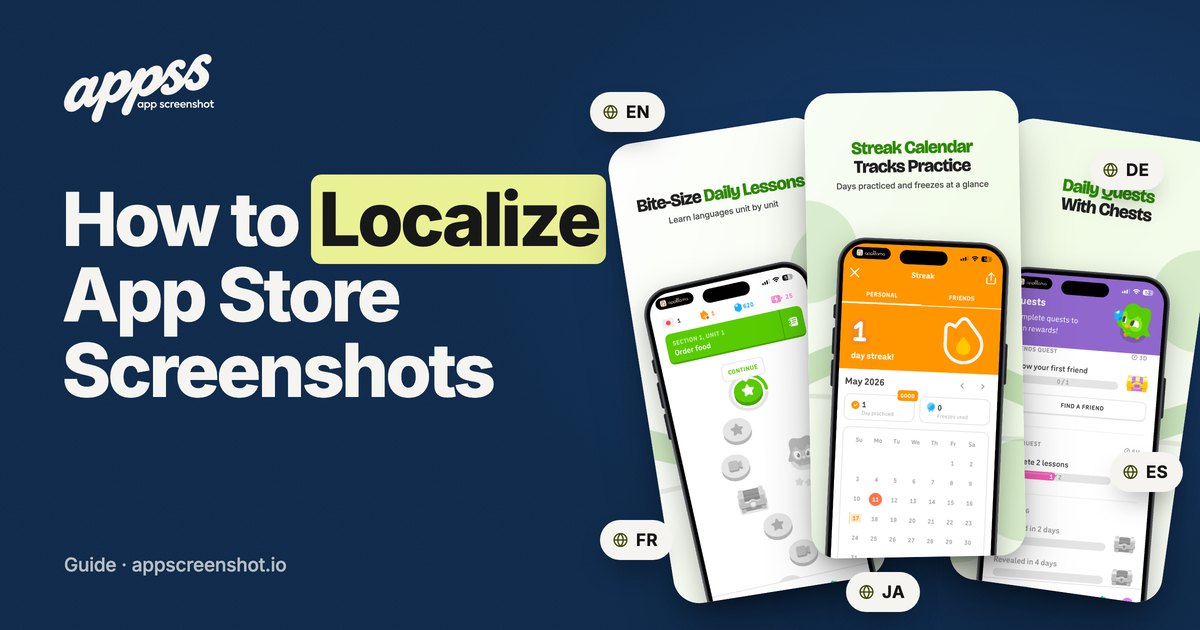
Translate the captions on your screenshots for every language you add, and show your app's screens in that language when the app supports it. A new App Store language starts with your primary language's screenshots, and Google Play keeps showing your default language's graphics until you upload localized ones, so untranslated images stay on the page.
Make my screenshotsSee the templates
Which languages the stores accept
Both stores let you give each language its own store page, screenshots included. Apple's App Store Connect Help lists 50 languages and locales you can localize your app's metadata in, from Arabic and Chinese (Simplified) to Turkish, Ukrainian and Vietnamese, with separate entries for English, French, Portuguese and Spanish variants. Apple's localization page puts it as an App Store "available in 175 regions and 50 languages."
Google Play's help page "Translate & localize your app" lists the languages you can add yourself in Play Console, and explains the rule that matters most: "If a user's language preference matches the translation languages you've added, they'll see the translated version of your app."
| App Store | Google Play | |
|---|---|---|
| Languages for your page | 50 languages and locales, listed in App Store Connect Help | Listed in Play Console Help under “Translate & localize your app” |
| A new language starts with | Your primary language's screenshots | Your default language's graphics, until you add localized ones |
| A visitor's language is missing | The next most relevant localization is shown | Visitors can choose an automated translation of the text; graphics stay in the default language |
| Text on images | Tailor screenshots to reflect the values of each market | Localize taglines and text overlays; in-game interface need not be localized |
| Machine translation | Have native speakers check it | Translations by native speakers are best |
What visitors see when a language is missing
Each store falls back to another language, and the fallback is where untranslated screenshots show up. On the App Store, if English is your primary language and the only one you provide, your page "will appear in English in all App Store countries or regions." Add French, and the French page shows to people whose language setting is French. When no localization matches, Apple says "the next most relevant localization is used."
Adding a language does not give it new screenshots. Apple's help says that "when you add a language to your app, screenshots and the properties for the new language default to those of the primary language, except for the description and keywords." Until you upload a localized set, that language shows your original captions.
Google Play behaves the same way for images: "If you add text translations without localized graphic assets, your app's graphic assets show from the default language." Visitors in a language you have not translated can choose an automated translation of your page's text, but that does not change the words inside your screenshots.
What to translate on each screenshot
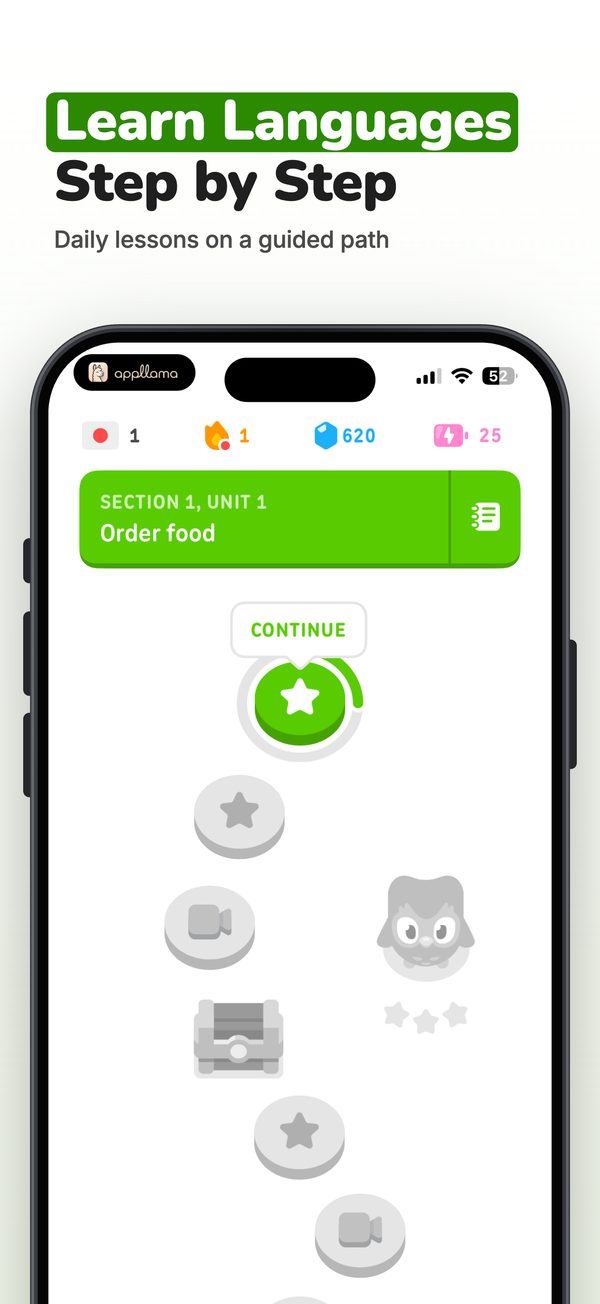
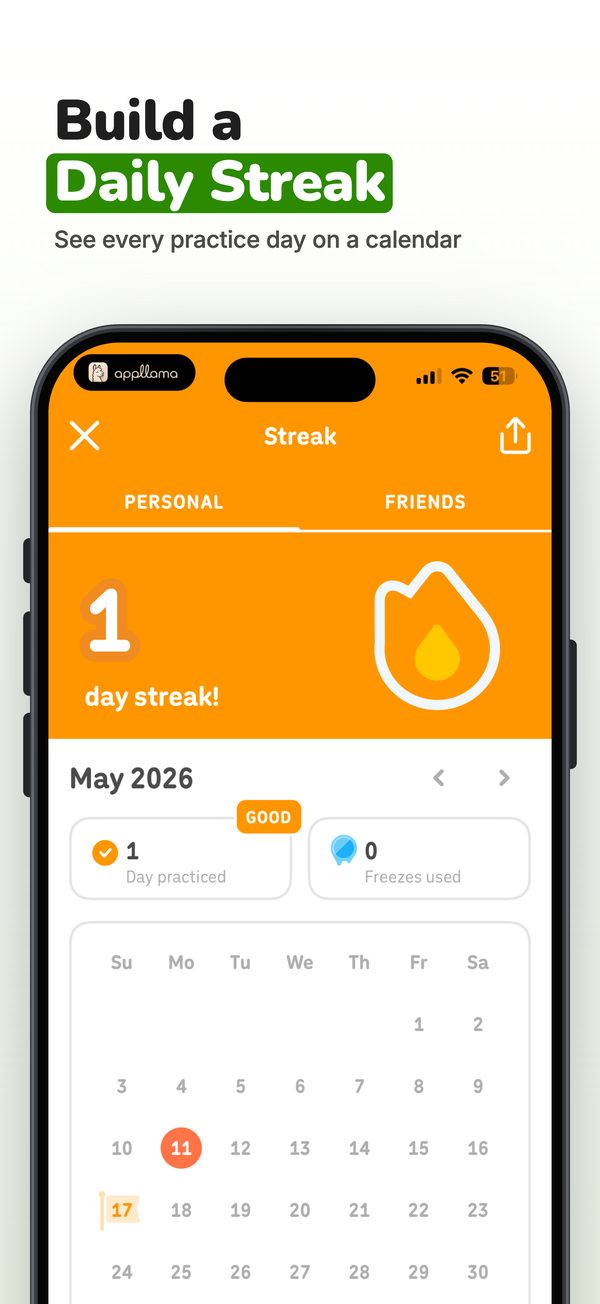
The caption is the part that has to change in every language. Google's recommendations say to "localize your graphic and branding text as appropriate for different markets and languages," and that "in-game UI does not need to be localized per market, but any additional taglines or text overlays should be localized." Apple's localization page suggests going further and tailoring "your screenshots to reflect the values of each market."
Write captions again rather than translating them word for word. A benefit that fits in four English words can need many more in another language, so leave room in the caption area, and check that the line still reads at a glance on a phone.
If your app itself is translated, show the translated screens as well. Apple's Xcode has a Localization Screenshots feature that generates localized screenshots from successful UI tests, which saves capturing every screen by hand.
Adding a language in App Store Connect and Play Console
Adding a language takes a few steps in each store, and both keep your original images until you replace them. In App Store Connect you add a language from the primary-language menu on the App Information page, then upload its screenshots; deleting a language later makes those regions "revert to showing the information entered for the primary language."
Be careful before changing your primary language. Apple requires that you have already "uploaded and received App Review approval for screenshots in the language for all supported platforms," at the same screenshot sizes as your current primary language.
In Play Console, you add languages from the Store listing page with Manage translations, then add localized graphic assets for each one. If your app also uses custom product pages on the App Store, those are localizable too, and Apple asks for screenshots in the language for each custom product page before it can become the primary language.
Check every language with a native speaker
Machine translation is a good first draft and a poor final one. Apple's advice is direct: "If using any machine translation to localize content, be sure to have native speakers for any languages test your app or game's translation and provide feedback." Google says the same about store listings: "While it's best to use translations by native speakers, automated translations of your app's store listing will be available to Google Play users."
A native speaker catches what a model misses on a screenshot: a caption that is grammatically right but not what anyone would say, a word that is too long for the line, or a benefit that matters less in that market.
Steps to localize a screenshot set
Localizing one set follows the same steps in every language, so it is worth doing them in order once.
- Choose the languagesStart where people already come from: Apple suggests looking at product page views, units, sales and active devices by territory.
- Write captions for each languageWrite each caption again in the new language instead of translating it word for word, and keep it short enough for the caption area.
- Show localized screensIf your app is translated, capture its screens in each language; Xcode's Localization Screenshots feature can produce them from your UI tests.
- Export one folder per languageExport every language at the sizes each store needs, so each upload matches the App Store sizes and Google Play sizes.
- Upload each language in its own placeIn App Store Connect, add the language from the language menu and replace the screenshots it copied from the primary language; in Play Console, use Manage translations and add localized graphics.
- Have a native speaker check itAsk a native speaker to read every caption on a phone before you submit; machine translation is a draft, not the final text.
In appscreenshot.io, the captions are written again for every language you add and exported in one folder per language, ready for App Store Connect and Play Console. Open the editor to try it on your own screens, or read the best practices guide first.
What this guide does not cover
Localizing screenshots is one part of localizing an app; a few cases need more than this guide.
- If your app's interface is not translated, translated captions over English screens can set the wrong expectation, and Apple asks that screenshots reflect the app's core experience. Translate the app first, or keep captions in the language of the interface.
- Right-to-left languages such as Arabic and Hebrew may need mirrored layouts and their own testing, which this guide does not cover.
- Buying translations through Play Console and Google's automatic translation of app strings are separate services; this guide does not compare them.
Questions and answers
How do I localize App Store screenshots?
Add the language to your app in App Store Connect, then replace the screenshots it copied from your primary language with a set whose captions are written in that language, and, if your app is translated, whose screens show the translated interface. Upload the same sizes as your primary language, and have a native speaker read the captions before you submit.
What happens if I don't localize my screenshots?
On the App Store, a language you add starts with your primary language's screenshots, and visitors whose language you have not added see the next most relevant localization. On Google Play, visitors see your default language's graphics until you upload localized ones, even when the text is translated. Either way, people read captions in a language that may not be theirs.
Do I need to translate the app's interface in the screenshots?
Google Play says in-game interface does not need to be localized per market, but taglines and text overlays should be. For apps whose interface is translated, showing the translated screens keeps the page accurate. Apple's Xcode can capture localized screenshots from UI tests with its Localization Screenshots feature, which makes this practical.
Which languages should I start with?
Start with the markets where people already find your app. Apple suggests filtering product page views, units, sales and active devices by territory; its own example is an English app with lower than average retention in Germany, which might be worth German support. The App Store supports 50 languages and locales for your page, so there is room to add them over time.
Can appscreenshot.io translate my captions?
Yes. appscreenshot.io writes the captions again for each store language you add, up to 39, and exports one folder per language for App Store Connect and Play Console. It does not translate the interface inside your screenshots; for that, capture the screens from your translated app.
Sources
- App Store localizations, App Store Connect Help, Apple Developer. Read on 29 November 2026.
- Localize app information, App Store Connect Help, Apple Developer. Read on 29 November 2026.
- Expanding your app to new markets, Apple Developer. Read on 29 November 2026.
- Creating your product page, Apple Developer. Read on 29 November 2026.
- Translate & localize your app, Google Play Console Help. Read on 29 November 2026.
- Add preview assets to showcase your app, Google Play Console Help. Read on 29 November 2026.
Make one set and get it in every language you sell in.
Make my screenshotsPublished by the appscreenshot.io Team. Found a mistake? Write to hello@appscreenshot.io.