App Store Screenshot Templates
appscreenshot.io has six App Store screenshot templates: Classic, Marker, Panorama, Frameless, Midnight and Tilt. Upload your app's screens and each template fills with them, with captions Claude writes and colors taken from your interface. The templates cost no credits to use. Exports are PNG files at 1320 × 2868 pixels, and free downloads carry a small watermark.
The six templates on the same four screens
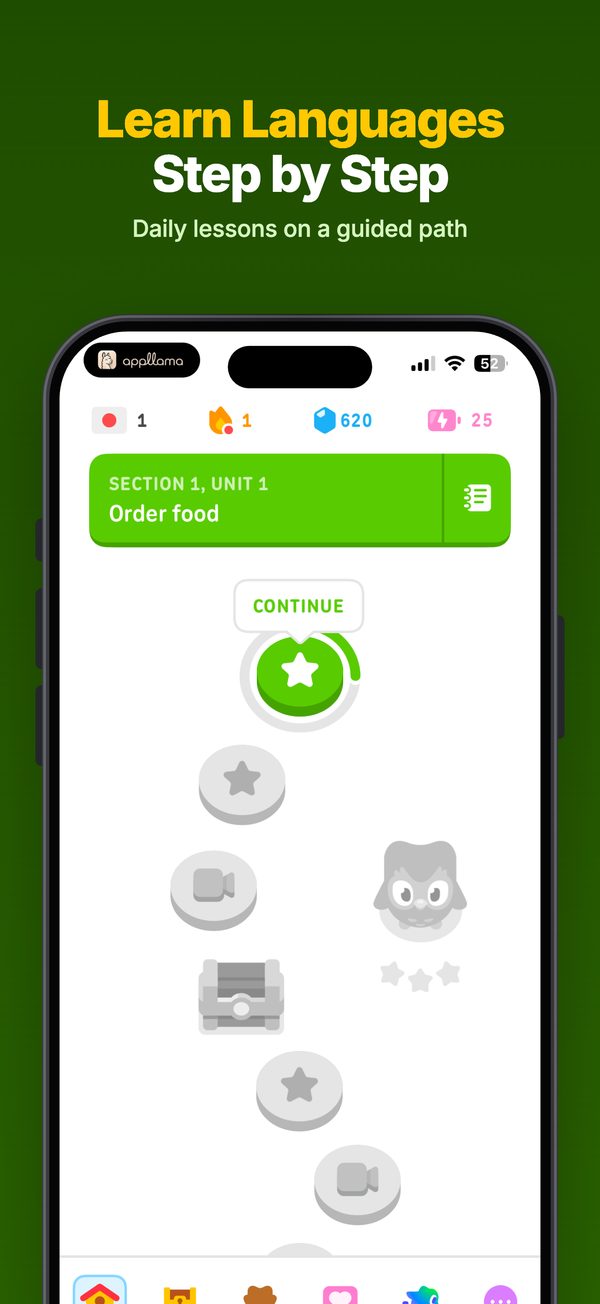
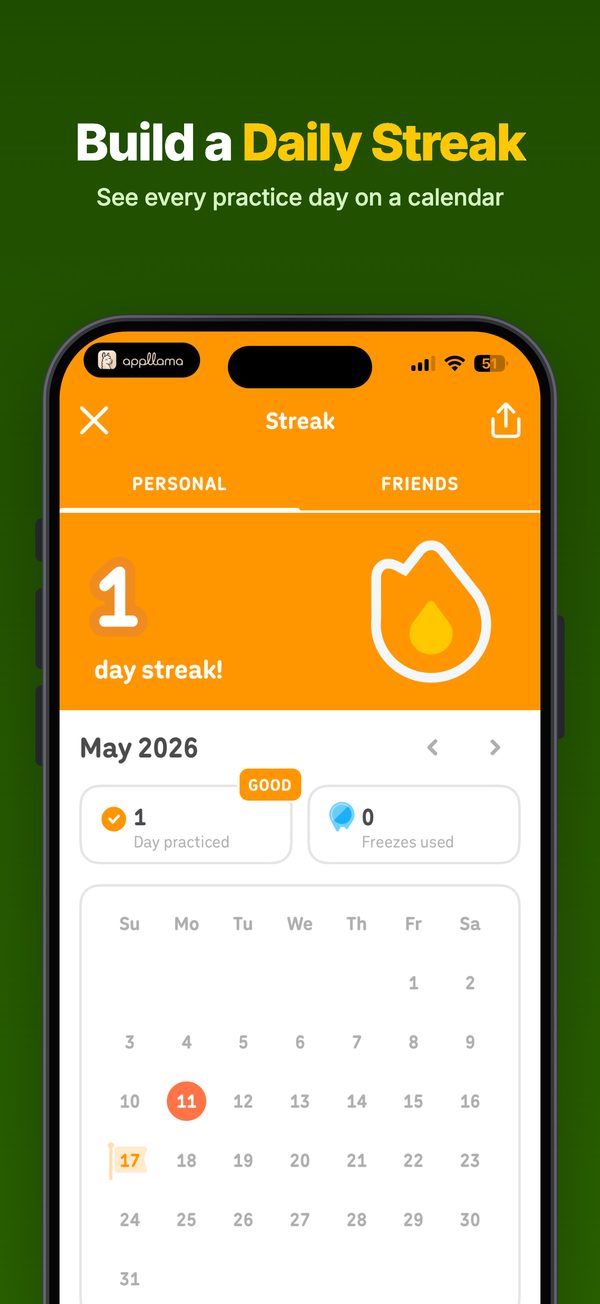
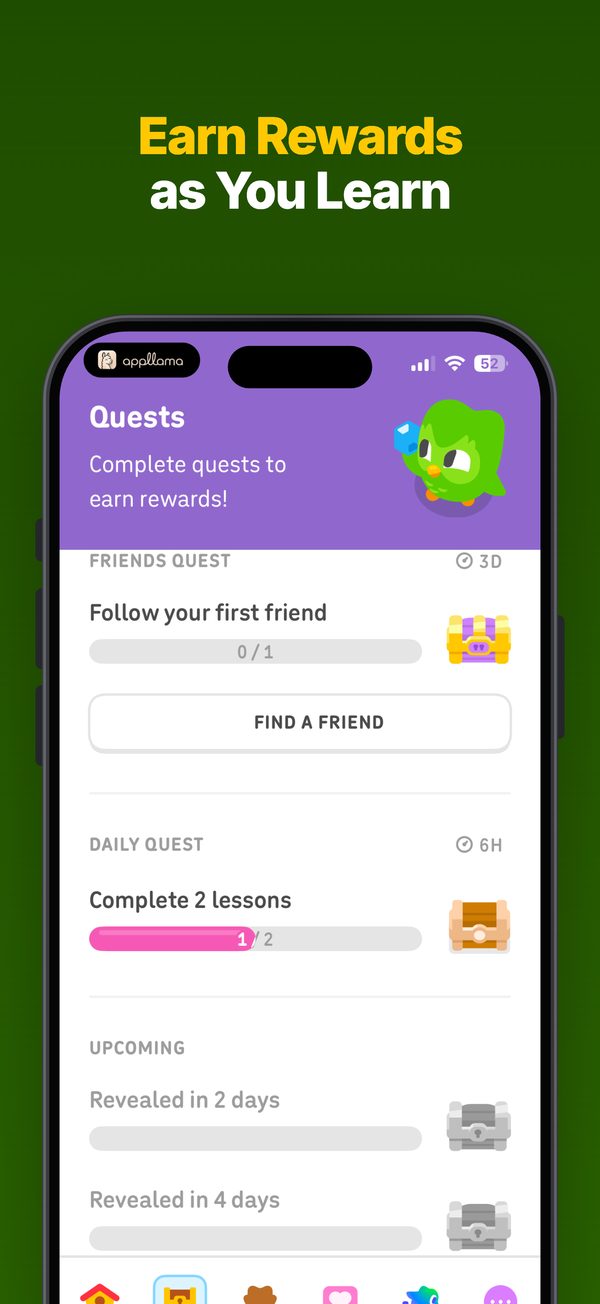
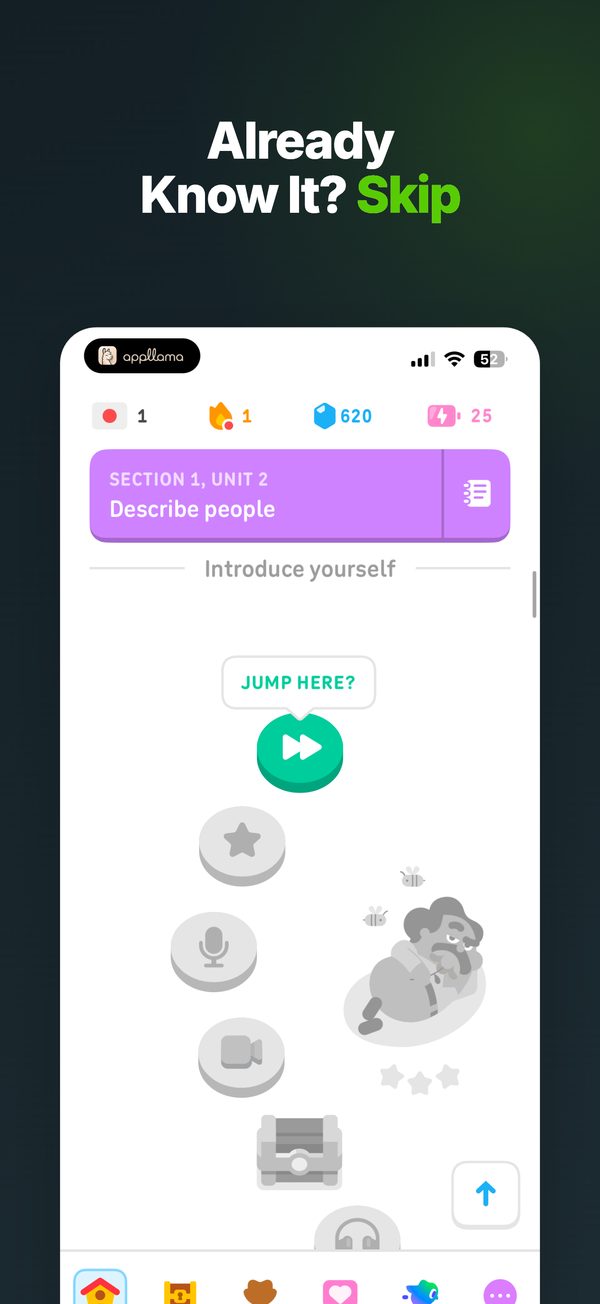
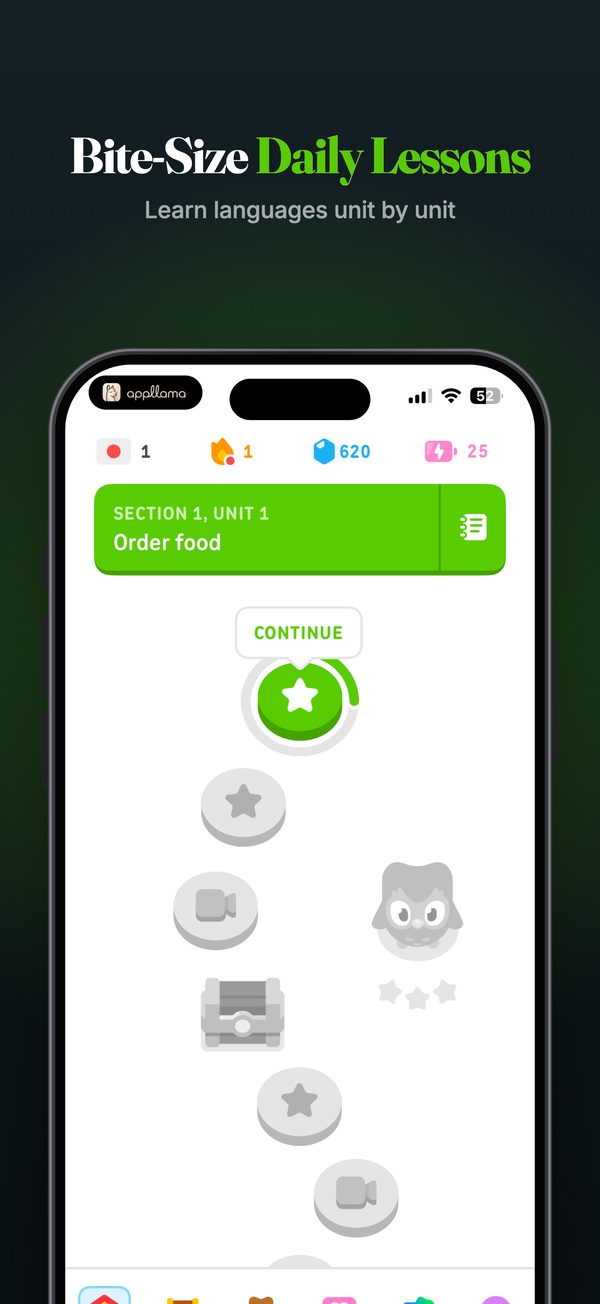
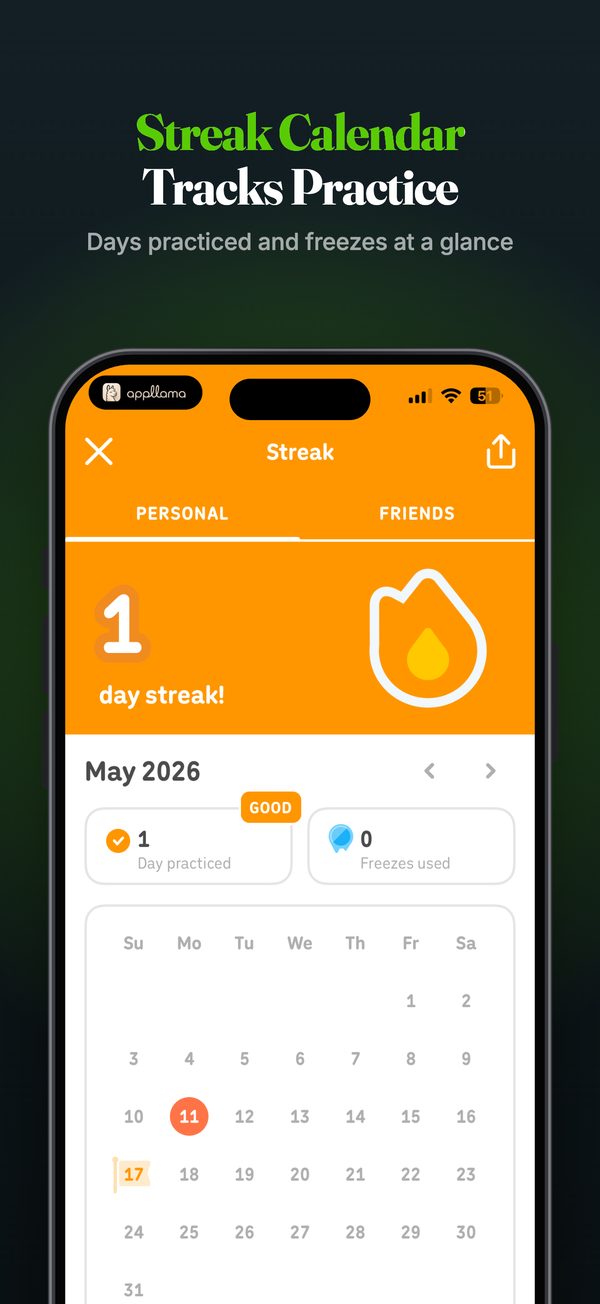
Every image below is a real export from appscreenshot.io, made from four in-app screens of Duolingo. The screens, the order and the app are the same in every row, so the only thing that changes is the template, along with the caption style and colors picked for it.
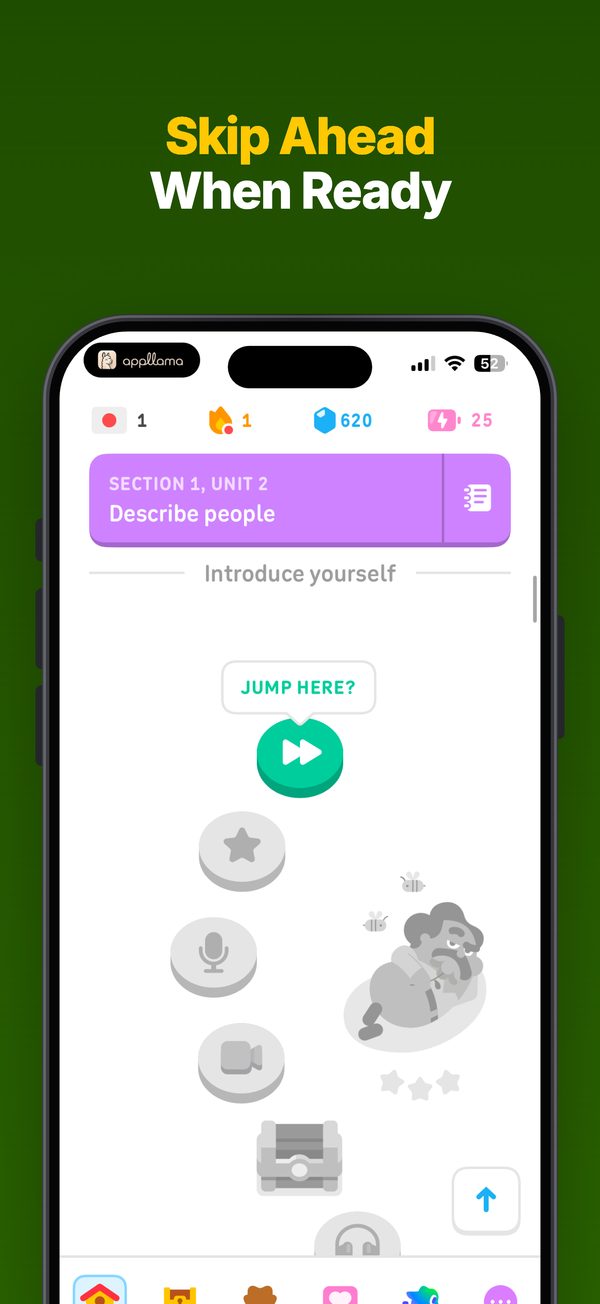
Classic
Caption on top, upright phone below. The plainest of the six, shown here on a dark green with the key words in yellow.
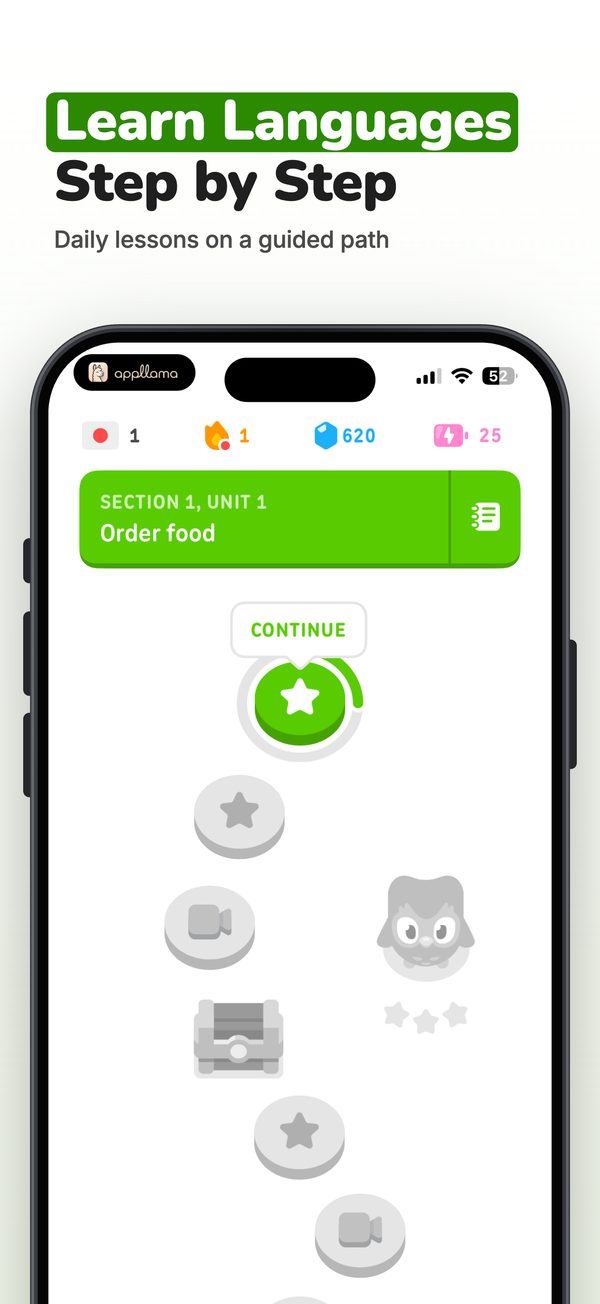
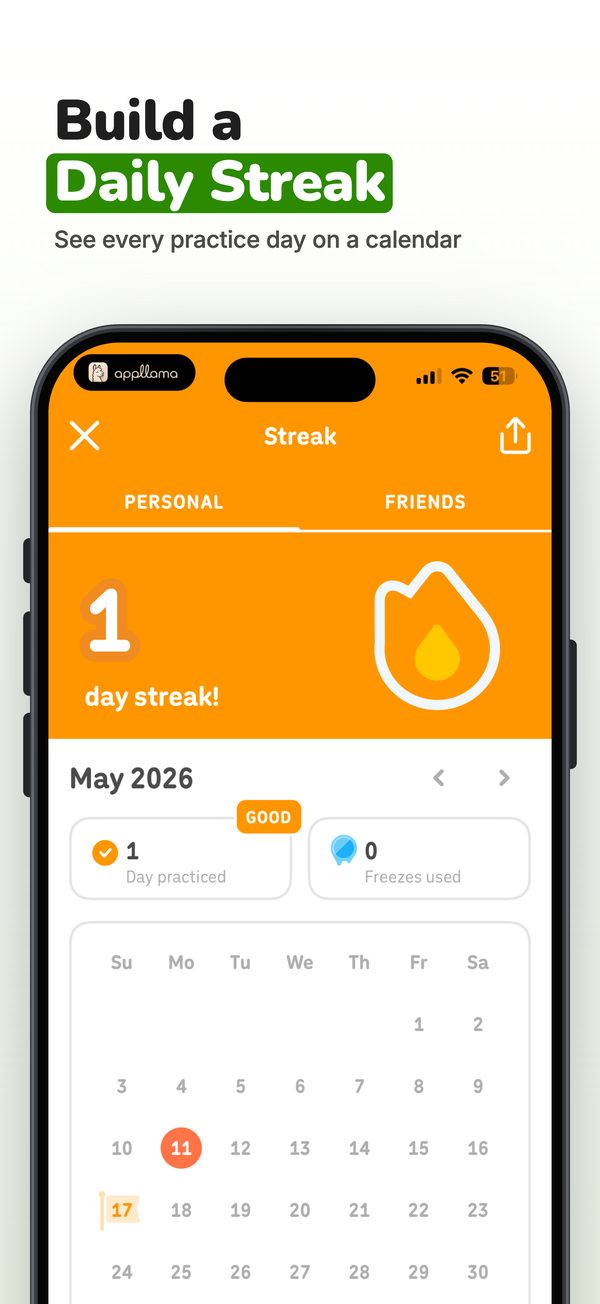
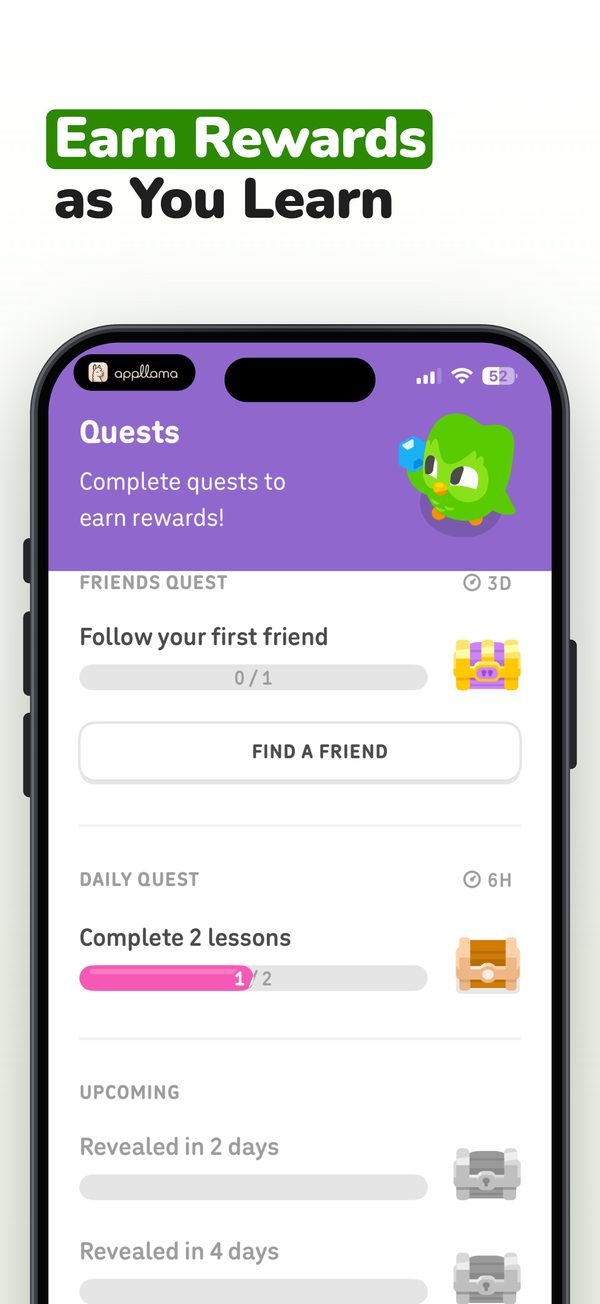
Marker
A left-aligned caption with the key words highlighted like a marker pen, and the phone below. Shown here on white.
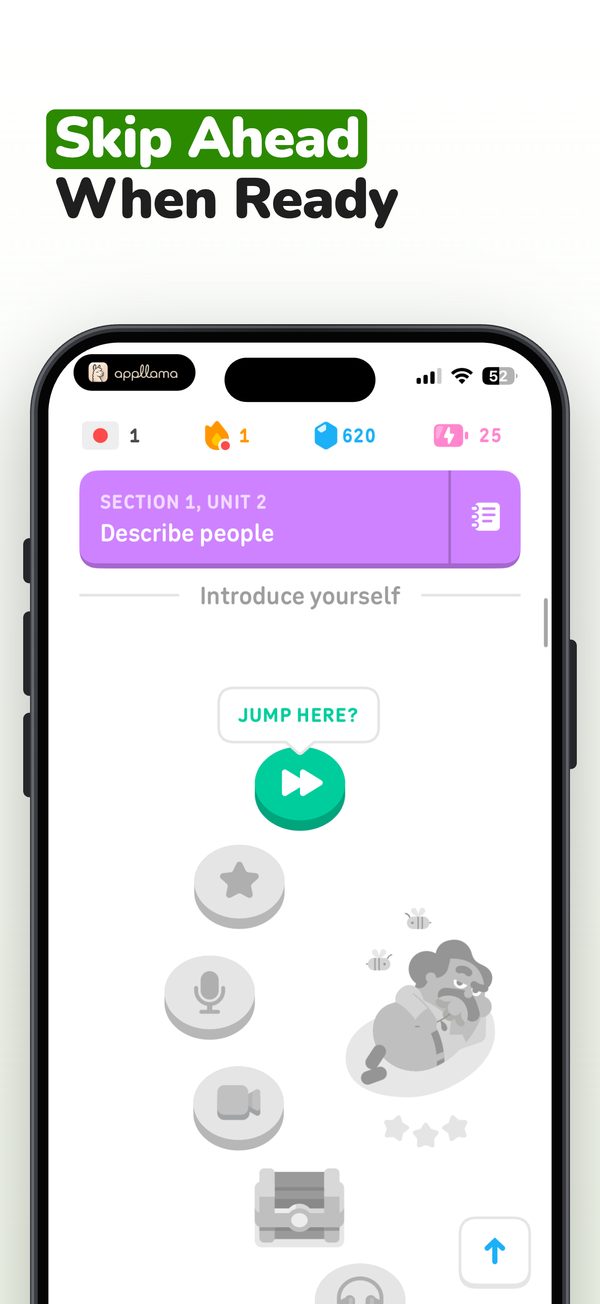
Panorama
One background runs across the whole set, so the slides read as a single strip when they sit side by side on the product page.
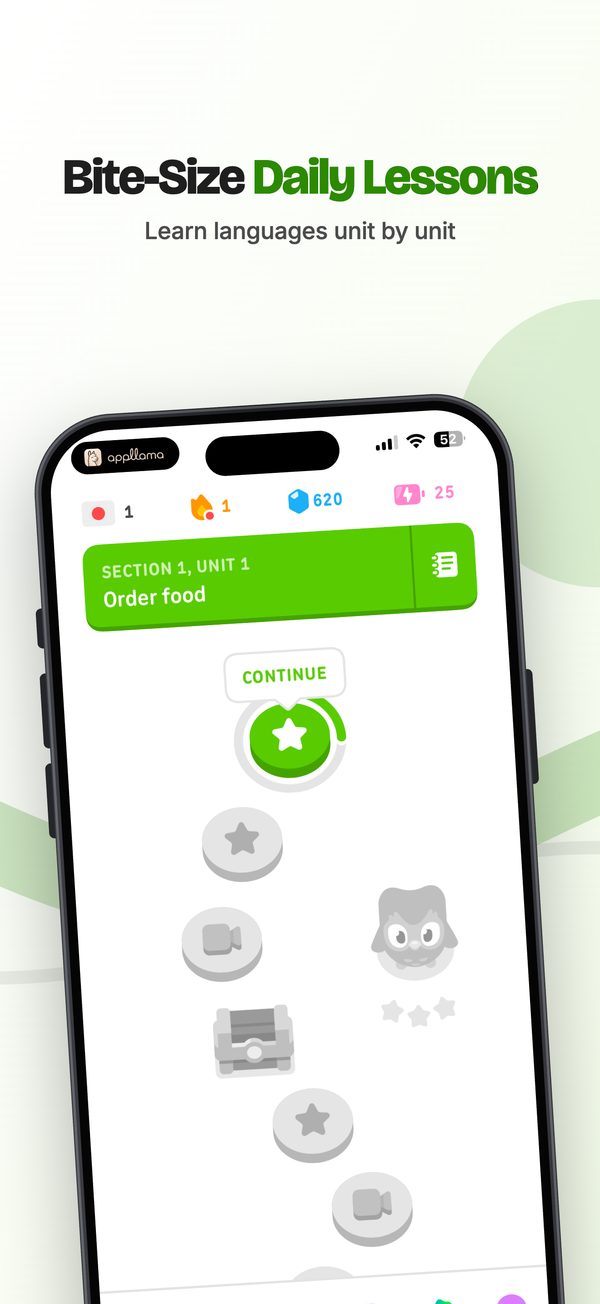
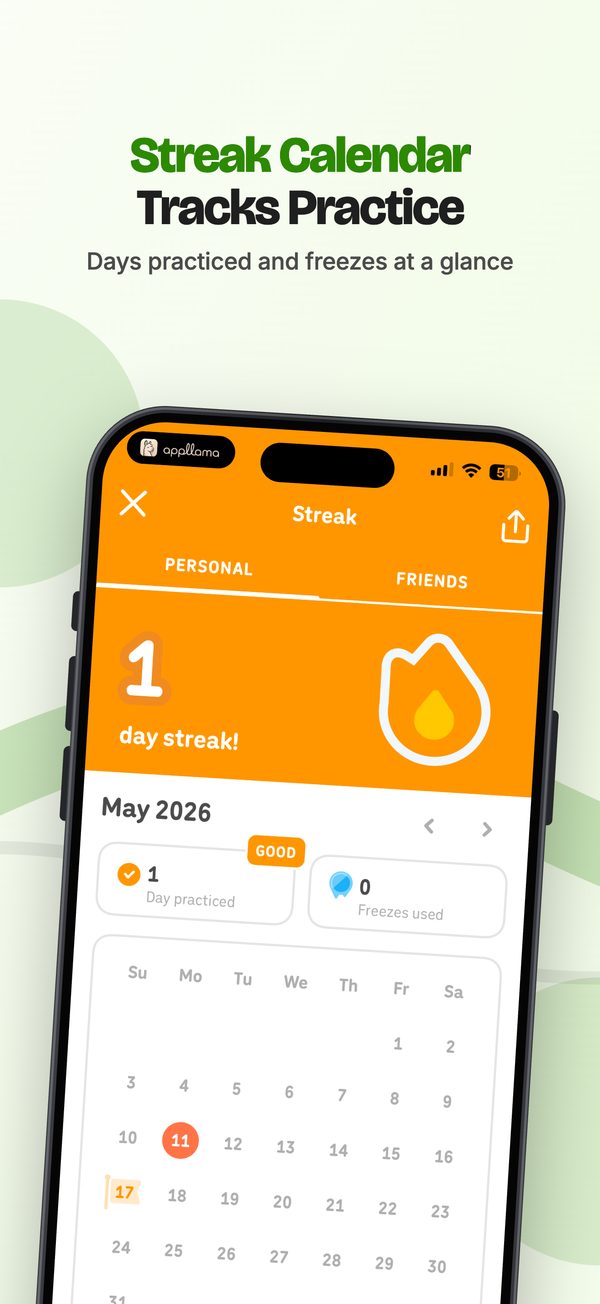
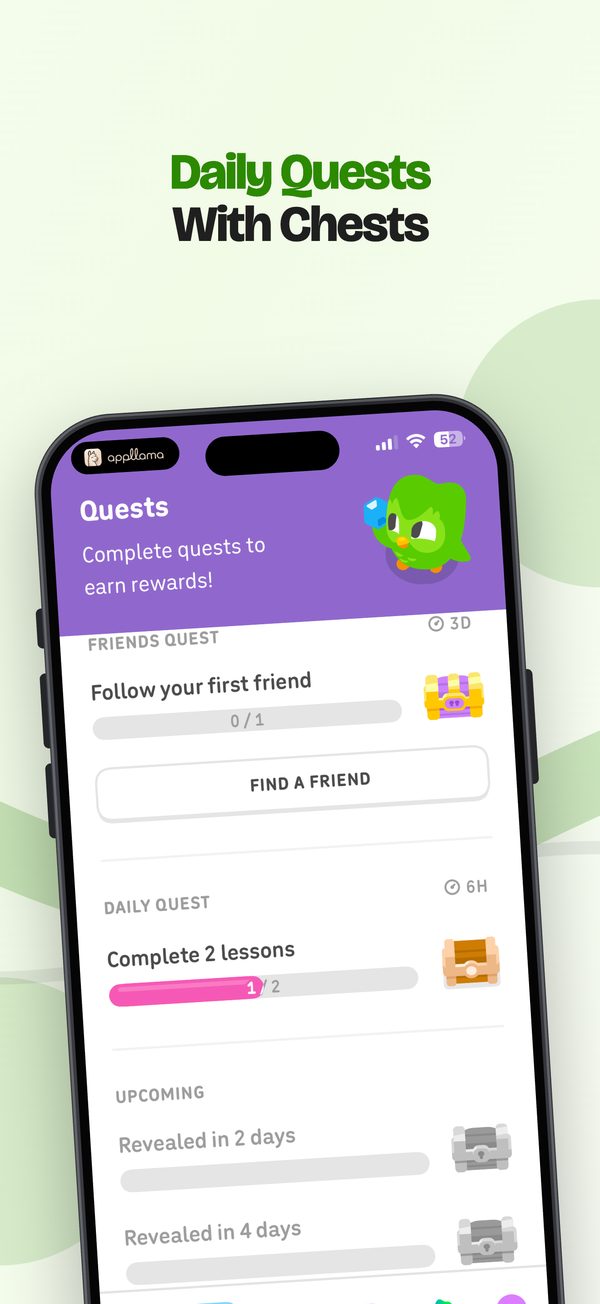
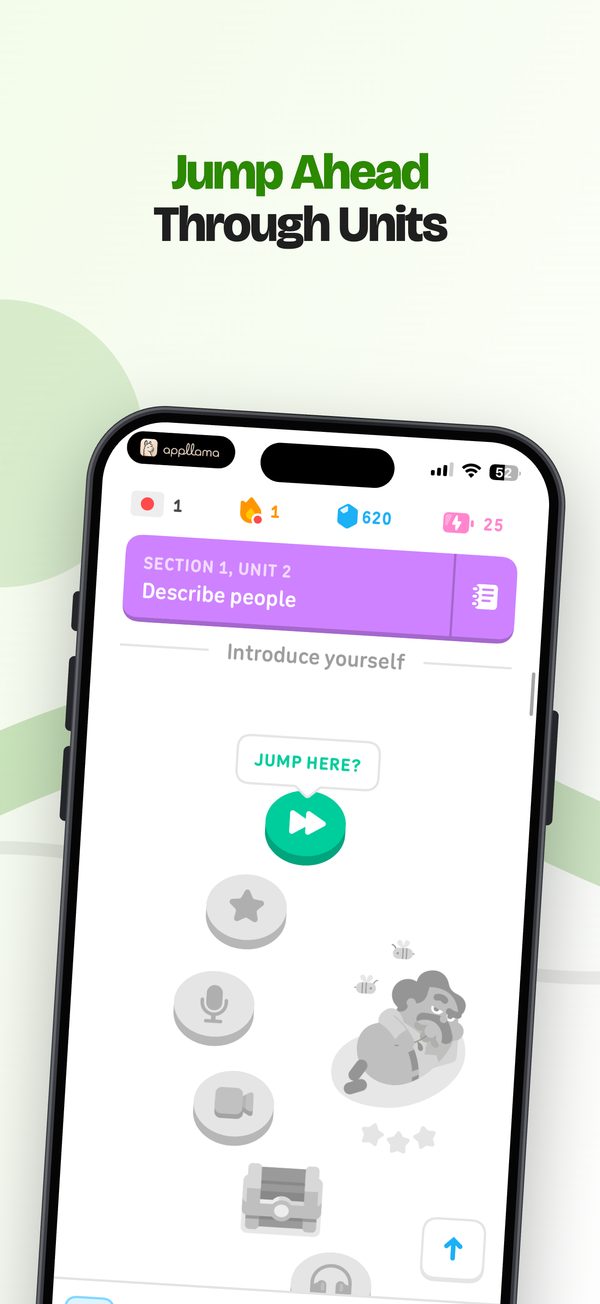
Frameless
No phone frame. Your screen is shown as a floating card with rounded corners under the caption.
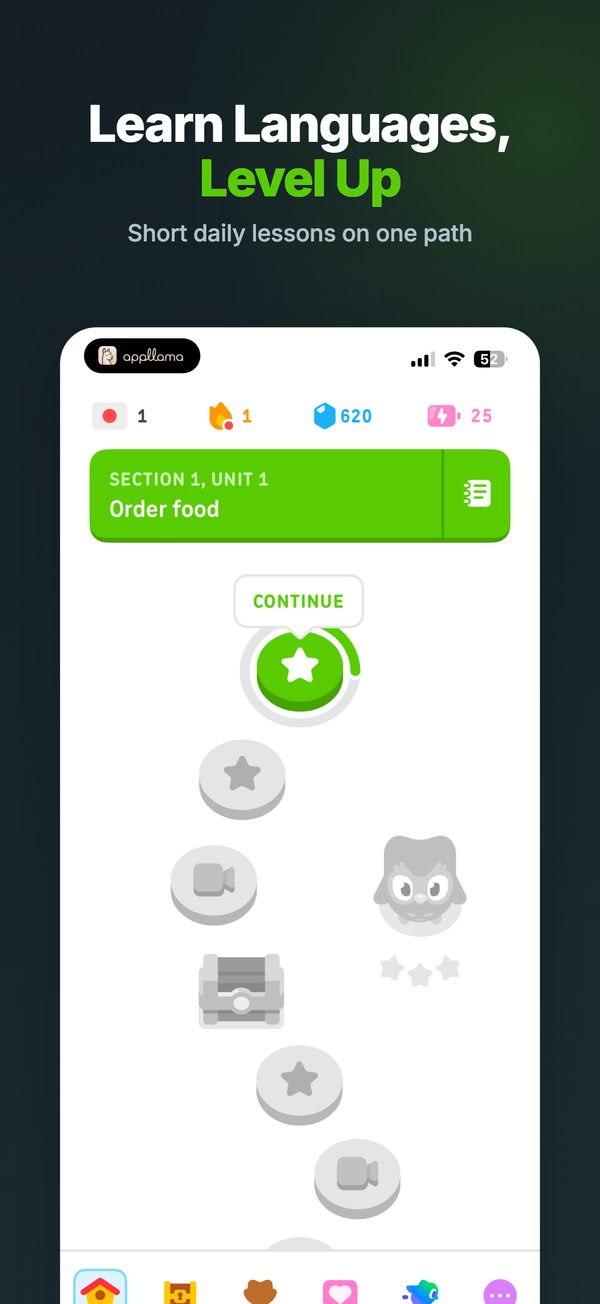
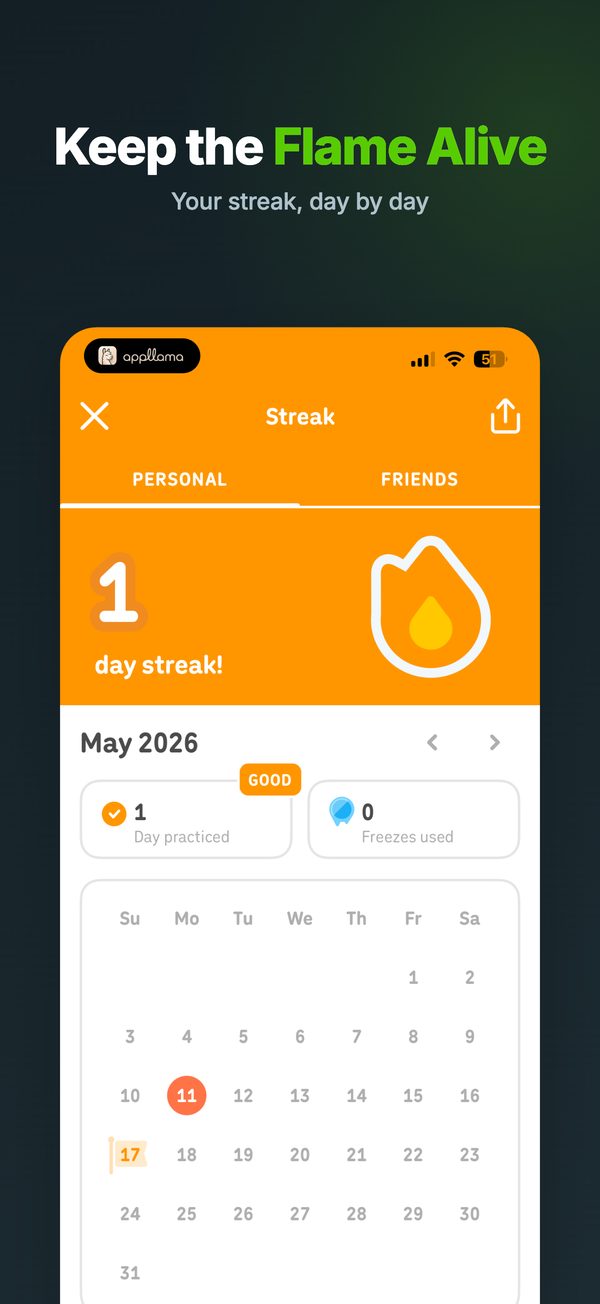
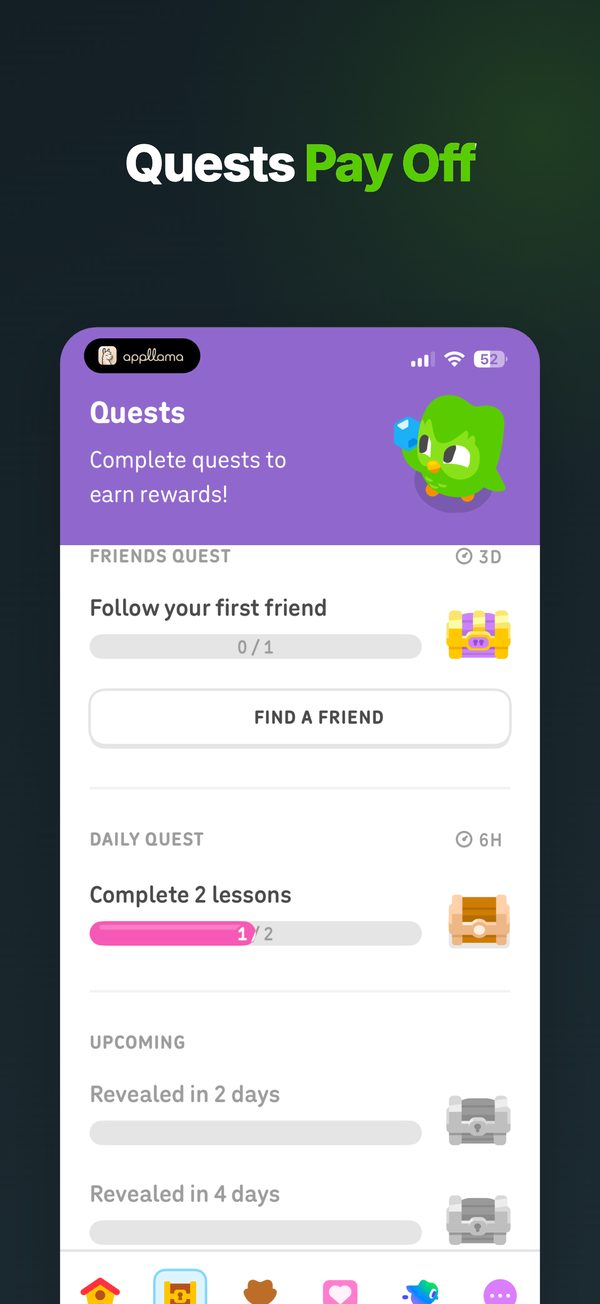
Midnight
A dark background with a soft glow behind the phone, shown here with a serif typeface.
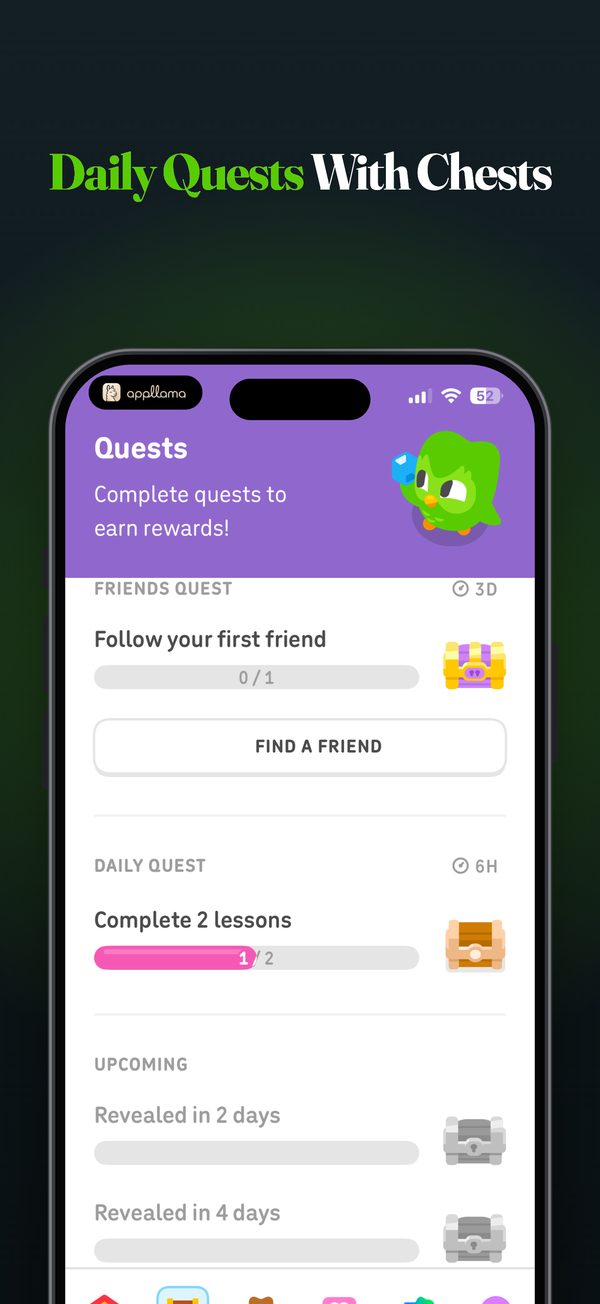
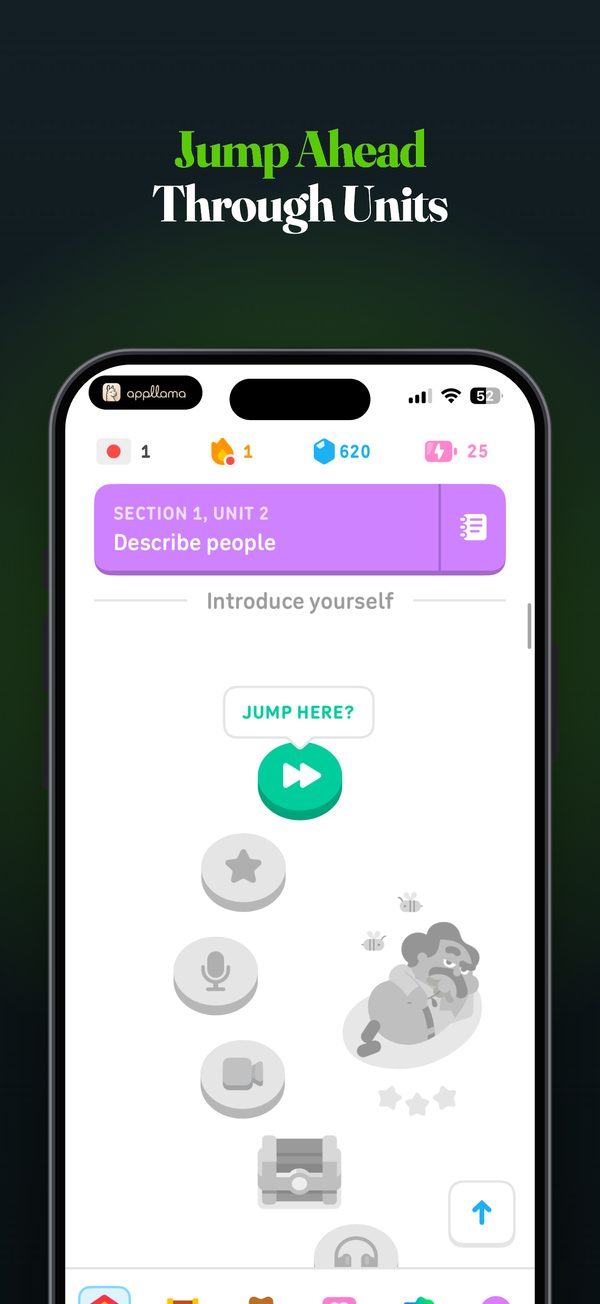
Tilt
A large phone tilted to one side and cropped by the edge, with a left-aligned caption.
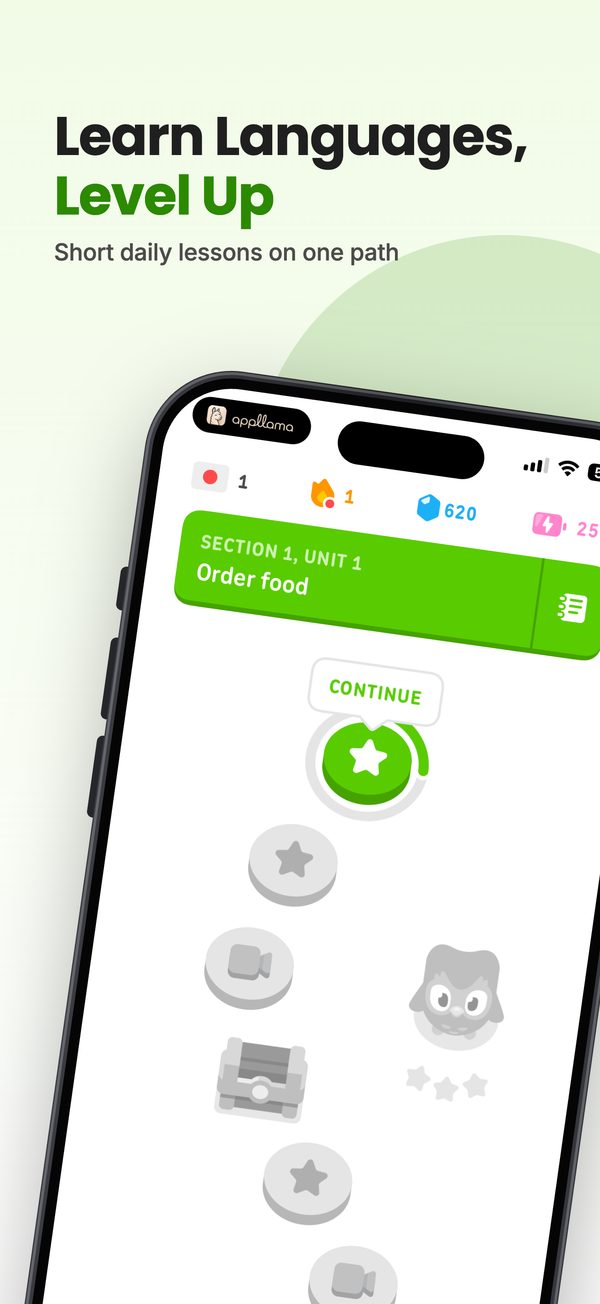
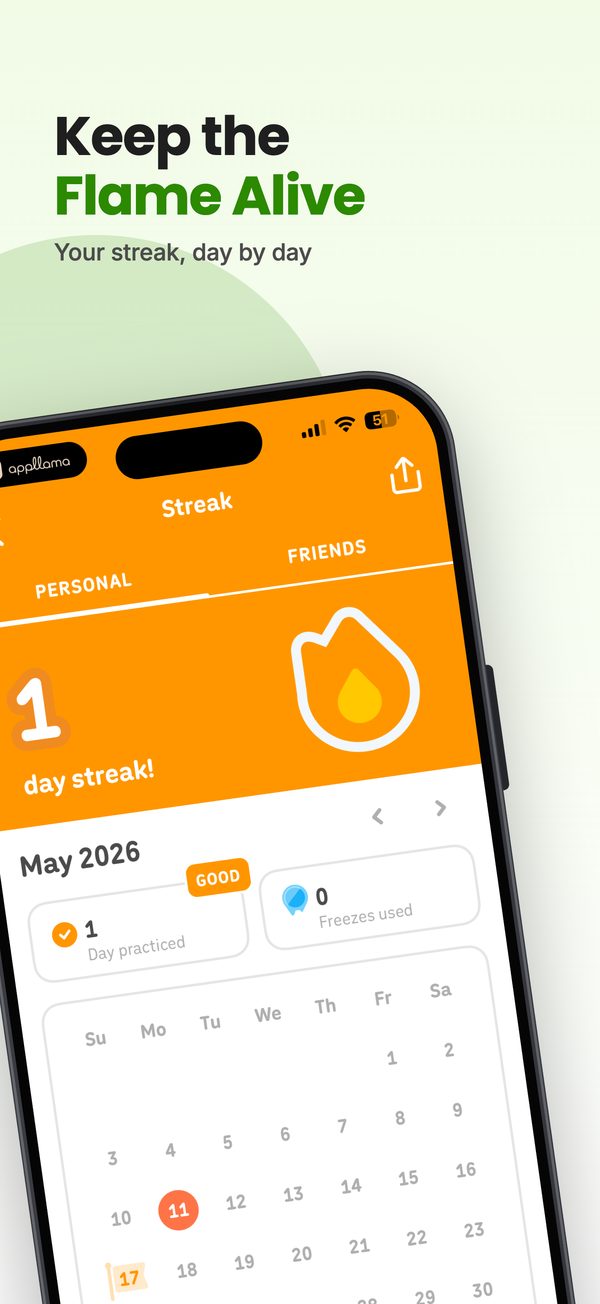
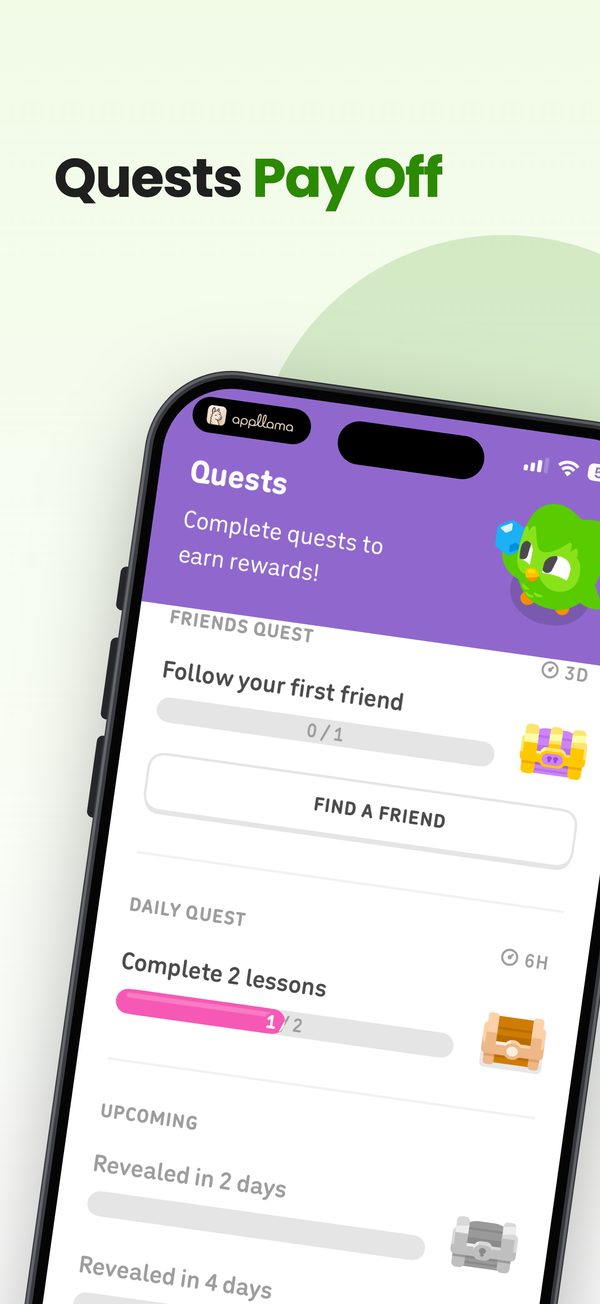
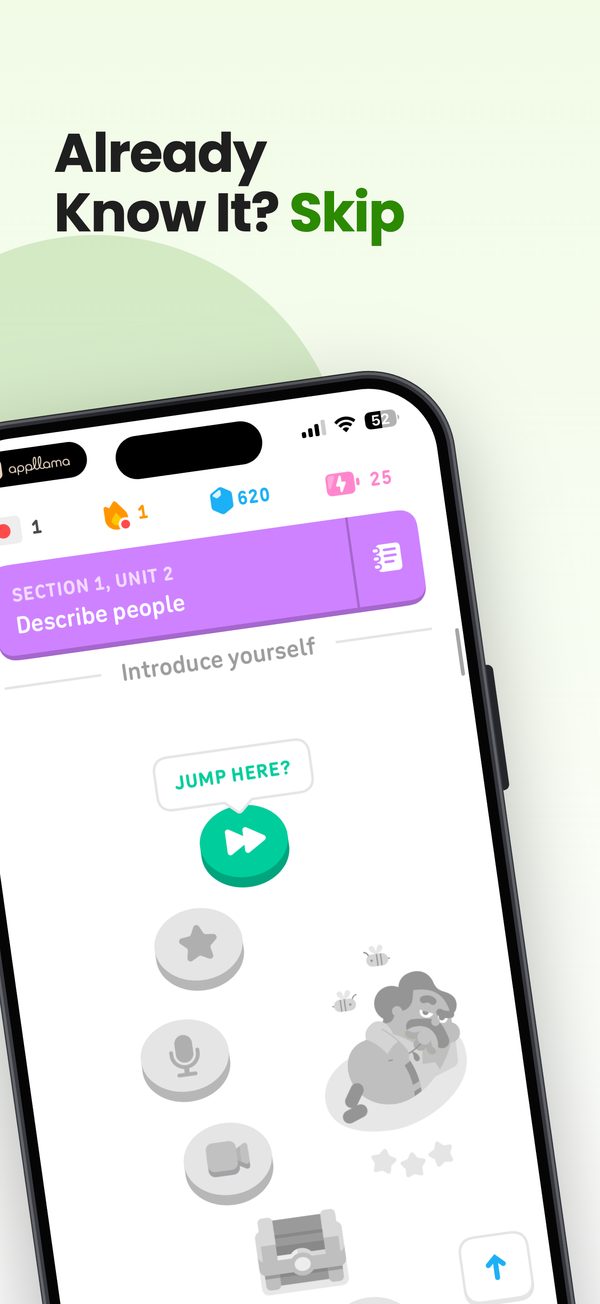
The small labels next to each name say which caption style, color set and typeface that export used. All three can be changed in any template.
What you can change in a template
A template fixes the composition and leaves the content to you. After you pick one, the editor lets you change these parts.
- Captions. A headline, an optional subheadline and the words to highlight, for each slide.
- Caption style. Claude writes three sets for your app: one built on benefits, one on features and one in a bolder voice. You switch between them with one click.
- Colors. Three color sets taken from your own interface, plus a picker for each single color.
- Typeface. Several typefaces, among them Inter, Poppins, Fraunces and Nunito.
- Order. Move any slide left or right.
- Intro slides. Put a slide you made yourself in front of the set, used exactly as it is, or add a photo intro for 60 credits.
How to use a template
Using a template takes five steps, and the first set is on screen in about a minute.
- Upload 3 to 10 raw screenshots of your app.
- Wait while Claude reads them, puts them in store order and writes the captions.
- Open Ready-made layouts and click one of the six templates. All six are already filled with your screens, so you compare real previews.
- Fix any caption, color or typeface you want to change.
- Tick your sizes and languages and download the ZIP.
Which sizes the templates export
Each template exports the same four sizes, so one design covers both stores. For the App Store that is 1320 × 2868 pixels and, as an option, 1284 × 2778 pixels. For Google Play it is a 1080 × 1920 pixel phone screenshot and the 1024 × 500 pixel feature graphic. The App Store screenshot sizes and Google Play screenshot sizes pages explain where those numbers come from.
A template or the look of another app
The six templates are the quick, no-cost route; copying a look is the route for a design you have already seen and liked. With a copied look you pick any app on the App Store, and the editor rebuilds its layout and style with your own screens and newly made photos. That costs 500 credits, while the templates cost none. The examples page shows both kinds of result.
To see the templates with your own screens in them, open the editor.
What the templates do not do
The templates are six fixed compositions inside the editor, and that sets clear limits.
- There are six templates, not hundreds. For a different composition, copy the look of another app instead, which costs 500 credits.
- There is no design file to download. The templates are not a Figma file or a Sketch file; you edit them in the browser.
- You change the text, colors, typeface and slide order. You cannot move or resize single elements inside a template.
- They do not make iPad sizes yet.
- Downloads on a free account carry a small Made with appscreenshot.io watermark. Pro ($23.90 a month or $129 a year) and credit packs remove it.
Questions and answers
Are the App Store screenshot templates free?
Using a template, editing it and downloading the images cost no credits. Before that, Claude reads your screens once, which costs 100 credits, and every new account starts with 100 credits. Downloads from an account that has never paid carry a small watermark.
Do the templates include an iPhone frame?
Five of them show your screen inside a phone frame that the editor draws. Frameless shows the screen as a card without a frame.
What size are the exported screenshots?
1320 × 2868 pixels for the App Store, with 1284 × 2778 pixels as an option, and 1080 × 1920 pixels plus a 1024 × 500 feature graphic for Google Play. All are PNG files without transparency. The App Store screenshot sizes page lists every size Apple accepts.
Can I change the colors and the typeface?
Yes. Each project gets three color sets taken from your own screens, and you can change any single color. You can also switch the typeface, the caption style and the order of the slides.
Can I use a template for Google Play too?
Yes. The same project exports Google Play phone screenshots and the feature graphic. The Google Play screenshot generator page shows what those files look like.
Is there a Figma version of the templates?
No. There is no Figma file or any other design file. The templates only exist inside the editor.
Sources
- Screenshot specifications, Apple, App Store Connect Help. Read on 29 November 2026.
- Add preview assets to showcase your app, Google, Play Console Help. Read on 29 November 2026.
See the six templates filled with your own screens.
Try the templatesPublished by the appscreenshot.io Team. Found a mistake? Write to hello@appscreenshot.io.