AI App Store Screenshot Generator
appscreenshot.io is an AI App Store screenshot generator. Claude reads your app's raw screens, puts them in store order and writes three sets of captions, and image models make new photos and stickers when you copy another app's look. You review and edit everything, then download PNG files at 1320 × 2868 pixels. The AI never redraws your app's interface.
Try it on my screensSee examples
One real example, from raw screens to a finished set
The example below is a real run in appscreenshot.io on 29 November 2026. Four in-app screens of Duolingo went in, and nothing else: no captions, no colors, no order.
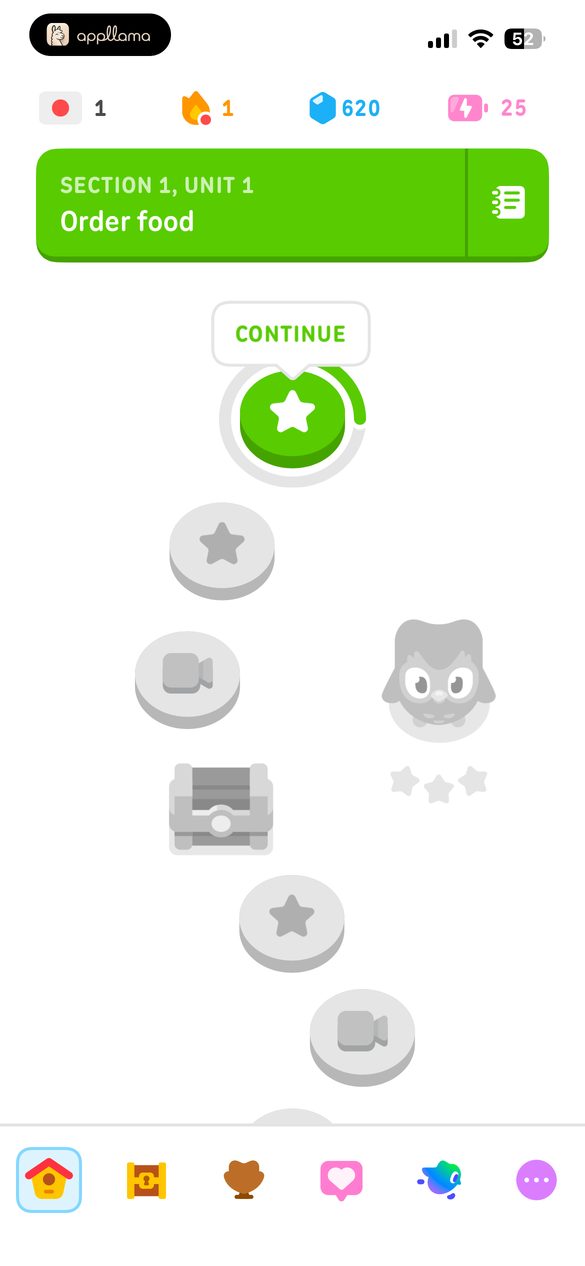
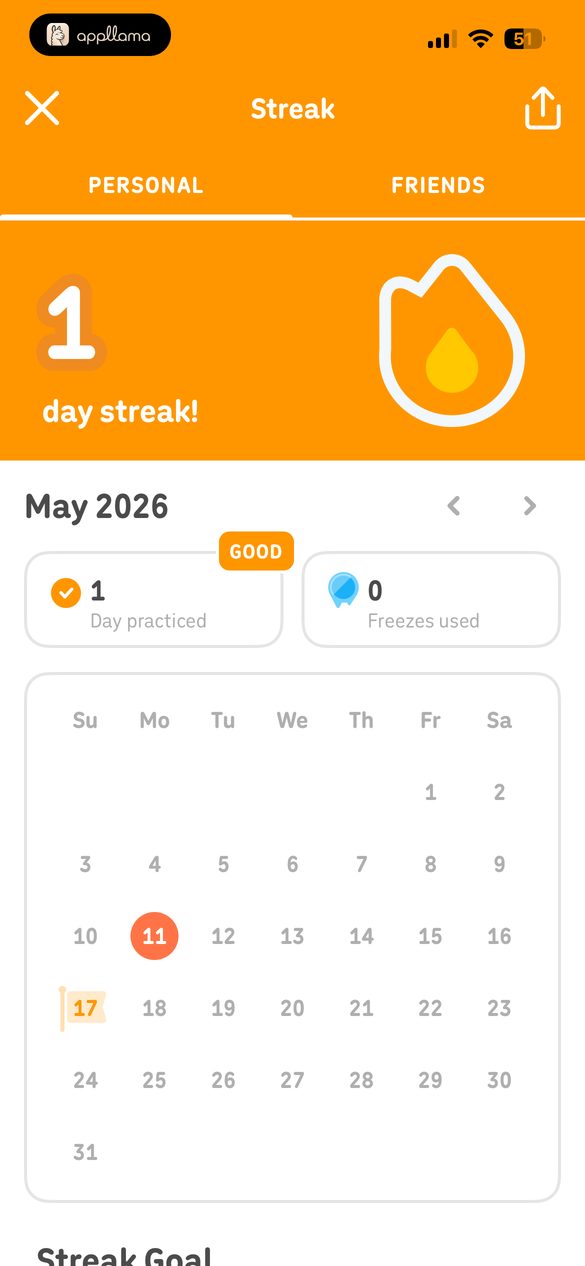
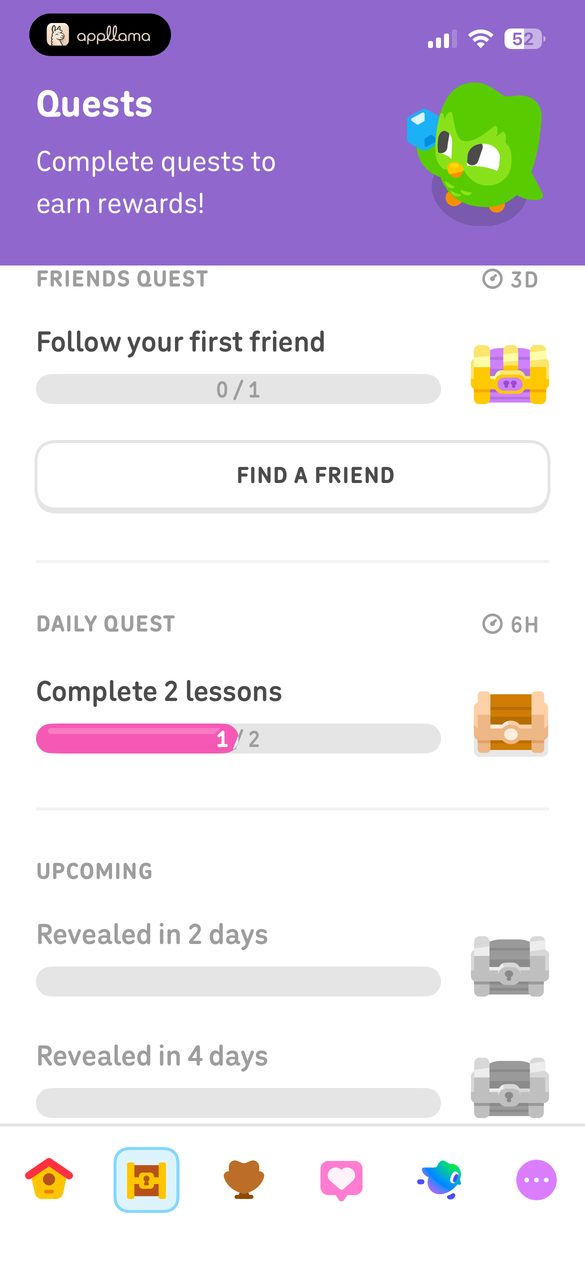
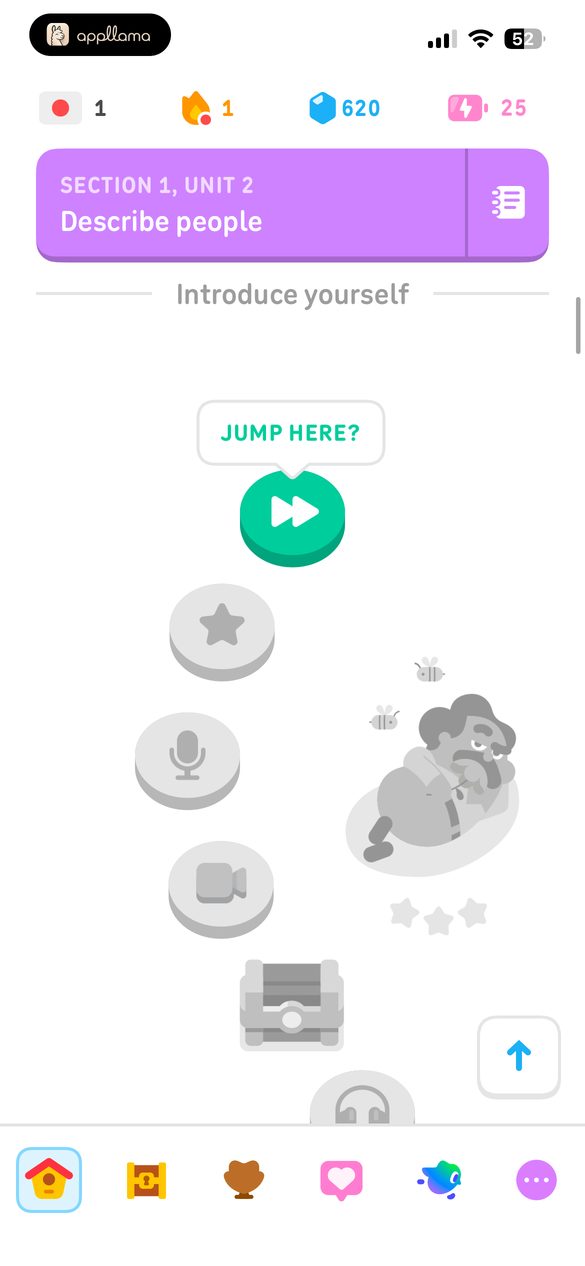
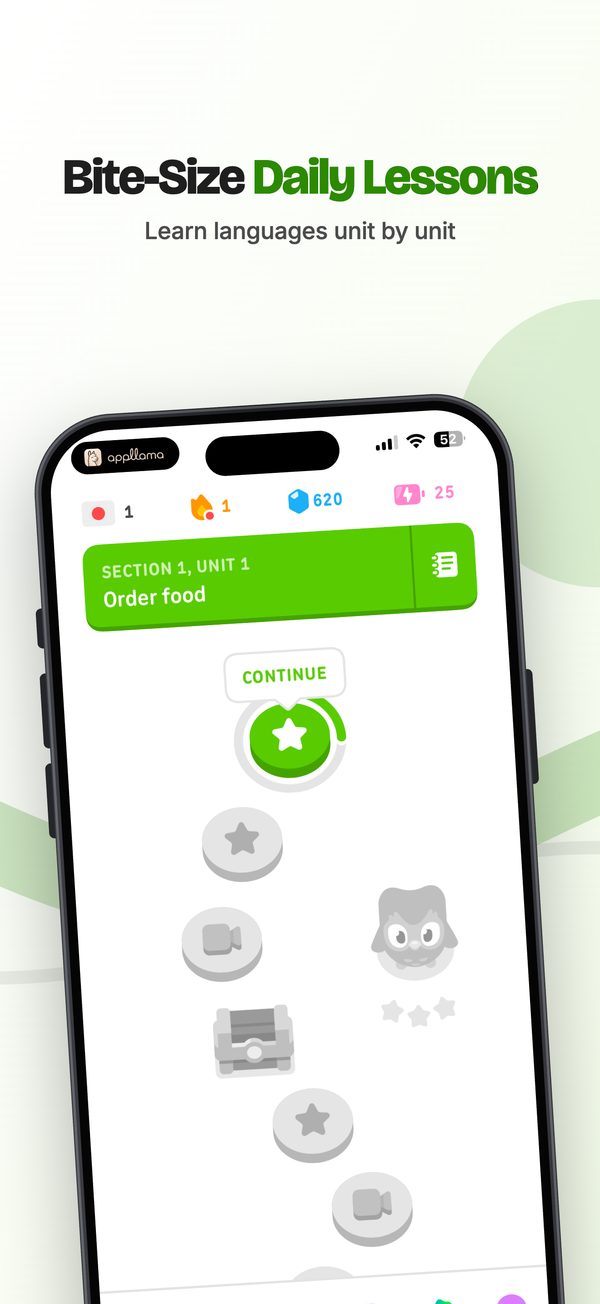
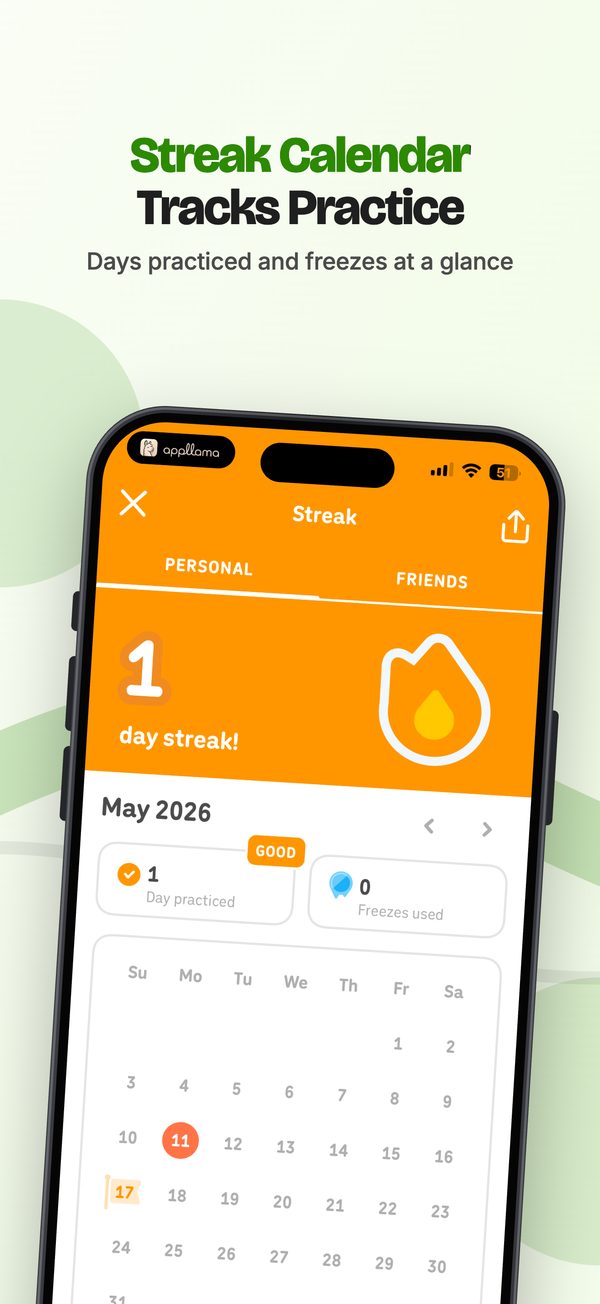
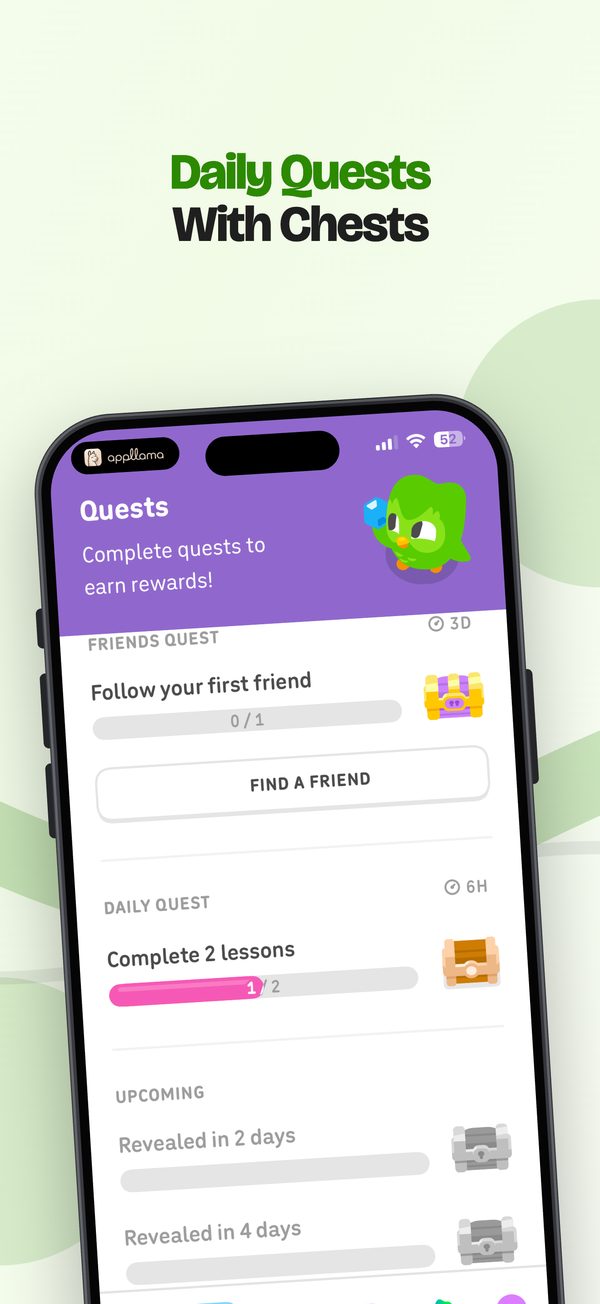
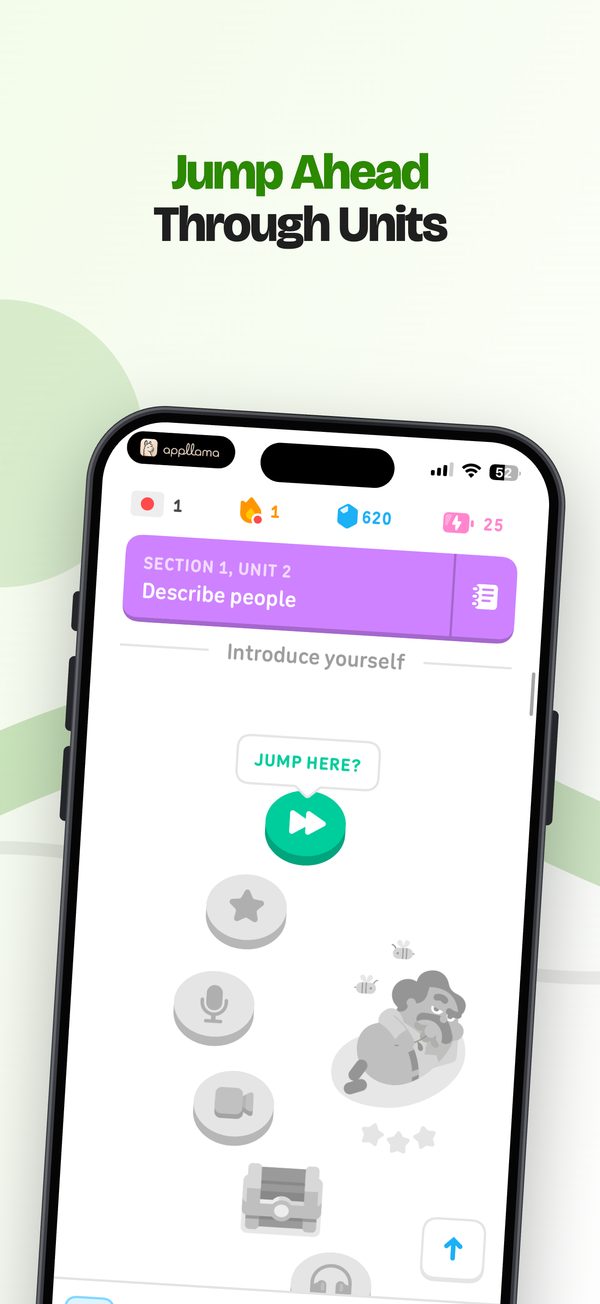
Claude read the four screens in 33 seconds. For each one it noted what the screen shows and what it proves, then proposed an order with a reason: the lesson path first because it proves the core promise, then the streak and the quests for the daily habit, with skipping ahead to close the set. It wrote three sets of captions.
| Screen | Benefit | Feature | Bold |
|---|---|---|---|
| 1. Lesson path | Learn Languages Step by Step | Bite-Size Daily Lessons | Learn Languages, Level Up |
| 2. Streak calendar | Build a Daily Streak | Streak Calendar Tracks Practice | Keep the Flame Alive |
| 3. Quests | Earn Rewards as You Learn | Daily Quests With Chests | Quests Pay Off |
| 4. Second lesson path | Skip Ahead When Ready | Jump Ahead Through Units | Already Know It? Skip |
It also picked three color sets from the app's own interface, and left notes about things it saw. One note pointed out that every status bar carried a recording badge and uneven battery levels. Another said the screens showed a brand-new account, so the captions should not name a specific language. A third said that weekly leagues, mentioned in the app description, were not visible on any screen, so no caption mentions them.
What the AI does, step by step
The AI work happens in a fixed order, and each step produces something you can see and change.
- Reads each screen. What it shows, what it proves about the app, whether it is light or dark, and its main colors.
- Sets the order. The screen that proves the main promise goes first.
- Writes the captions. Three sets, each with a headline, an optional subheadline and the words to highlight, using the search terms you entered.
- Suggests colors. Three color sets taken from your interface.
- Copies a look, if you ask. It measures another app's set, rebuilds that layout with your screens, and has new photos and stickers made to fit.
- Writes other languages. Captions are written again for each language you add, not translated word for word.
What stays in your hands
Everything the AI writes is a draft that you can change before you download. You choose between the three caption sets or rewrite any line, switch templates, colors and typefaces, and move slides. Before the download, the editor runs a list of checks on the set, such as whether the headline stays readable at the size of a search result and whether the text has enough contrast, and shows which ones pass.
Which models are used and what they see
Two kinds of models are involved, and they receive different things.
| Step | Done by | What it sees |
|---|---|---|
| Reading your screens, order, captions, colors | Anthropic's Claude | Your screenshots and the app details you typed |
| Measuring a look you copy | Anthropic's Claude | The other app's public App Store screenshots |
| New photos and cut-out stickers | Image models at fal.ai | A text description only, never your screenshots |
| Captions in other languages | Anthropic's Claude | Your captions and app details |
| Drawing the final PNG files | The editor in your browser, no AI | Your screenshots and the design |
Where no AI is involved
The final images are drawn by the editor's own renderer, with no AI in that step. It places your real screenshot inside the layout, sets the caption in the chosen typeface and exports PNG files at the exact store sizes, 1320 × 2868 pixels for the App Store. That is why the interface in the finished screenshot is identical to the one you uploaded. The six templates page shows what the renderer produces from the same four screens.
To see what Claude writes for your own app, open the editor.
What the AI does not do
The AI prepares a first version for you to correct, and several things stay outside its reach.
- It does not redraw, clean up or invent your app's interface. What is in your screenshot is what appears in the phone, status bar included.
- It can get a caption wrong or describe a screen too generously. Read every caption before you publish; you can edit each one.
- It does not translate the text inside your screenshots. Other languages change the captions only.
- It does not generate photos in the ready-made templates. New photos and stickers are made only when you copy a look, or when you add a photo intro.
- It makes no promise about App Review, rankings or installs.
Questions and answers
Does AI write the captions on the screenshots?
Yes. Claude writes a headline and, where it helps, a subheadline for every screen, in three styles: benefit, feature and bold. It also marks the words to highlight. You can rewrite any of them.
Does the AI change or generate my app's screens?
No. Your screenshots are placed in the layout as they are. The only generated images are background photos and cut-out stickers in a copied look, and those are made from text descriptions.
Which AI models does appscreenshot.io use?
Anthropic's Claude reads the screenshots and writes the text. Image models hosted by fal.ai make photos and stickers from text descriptions only. The privacy page says what each service receives.
How long does the AI take?
In the example on this page, reading four screens and writing the captions took 33 seconds on 29 November 2026. Copying another app's look took between about one and three and a half minutes in our own runs that week, depending on how many photos and stickers the look needs.
What does the AI step cost?
Reading your screens and writing the first drafts costs 100 credits, and a new account starts with 100 credits. Copying a look costs 500 credits and each extra language 20. The ready-made templates, editing and downloading cost no credits.
Can I run it from Claude?
Yes. Add the appscreenshot.io connector to Claude and ask for your screenshots. Claude can create the project, read your screens, copy a look, edit captions and add languages; you review and download the images in the editor.
Sources
- Screenshot specifications, Apple, App Store Connect Help. Read on 29 November 2026.
Let Claude read your screens and write the first set.
Try it on my screensPublished by the appscreenshot.io Team. Found a mistake? Write to hello@appscreenshot.io.